Microsoft Office 365 “Something went wrong [1001]” error
Step 1: Close all Microsoft 365 applications
Before making any changes or troubleshooting, it’s imperative to ensure all Microsoft 365 applications are closed. This includes Outlook, Word, Excel, PowerPoint, Teams, and any other application associated with the suite. Closing these applications will ensure that any changes made will be effective upon restarting.
- Save any unsaved work to avoid potential data loss.
- Navigate to each open Microsoft 365 application.
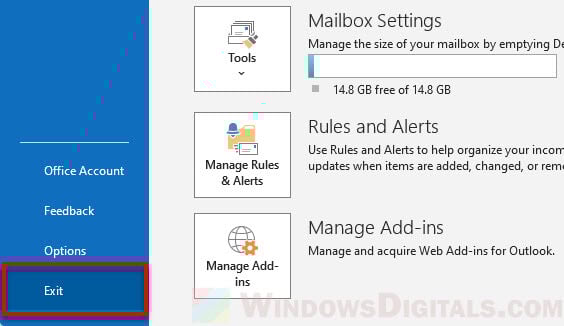
- On the top right corner, click the X or go to File > Exit to close the application.
Step 2: Sign out of your Microsoft account from any 365 app
Now, you will need to reopen one of the 365 apps and sign out of your Microsoft account, in order for the subsequent steps to work.
- Open a Microsoft 365 application, such as Word or Excel.
- Go to File > Account.
- Under the “User Information” section, click Sign Out.
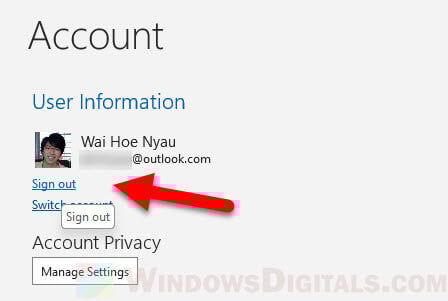
- Confirm any prompts to fully sign out.
Once you’ve signed out, it’s recommended to restart your computer before proceeding to the next steps. This ensures that all changes are applied correctly.
Step 3: Delete “IdentityCache” and “OneAuth” folders
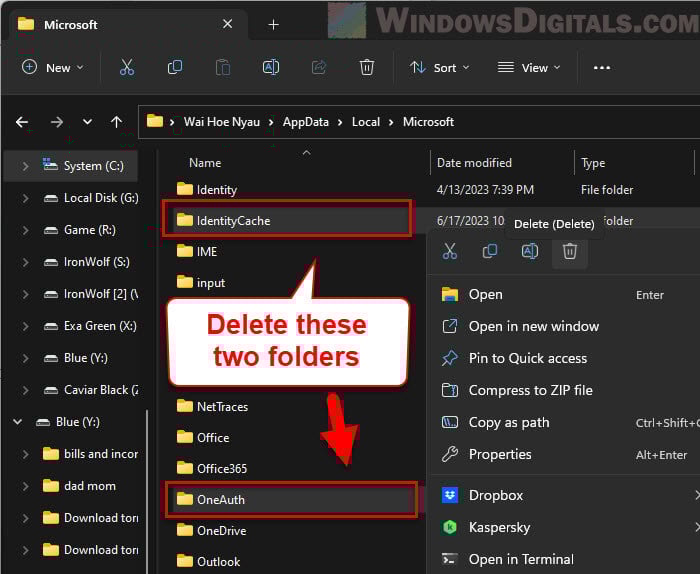
Corrupted cache files can be a culprit behind the Outlook 1001 error. By navigating to a specific directory, you can delete the IdentityCache and OneAuth folders, which are known to store cache files for Microsoft 365.
- Press the Windows key + E on your keyboard to open File Explorer.
- Navigate to
C:\Users\<username>\AppData\Local\Microsoft, replacing<username>with your actual username. - Locate the IdentityCache and OneAuth folders.
- Right-click on each folder and select Delete.
- Confirm any prompts to fully delete the folders.
Step 3: Clear cached credentials
Cached credentials can sometimes become corrupted or outdated, leading to authentication errors. Clearing these credentials can often resolve such issues, allowing for a fresh start when logging back into Microsoft 365 applications.
- Press the Windows key + R on your keyboard to open the Run dialog box.
- Type
controland press Enter to open the Control Panel. - Ensure the view is set to Small icons and locate and click on Credential Manager.
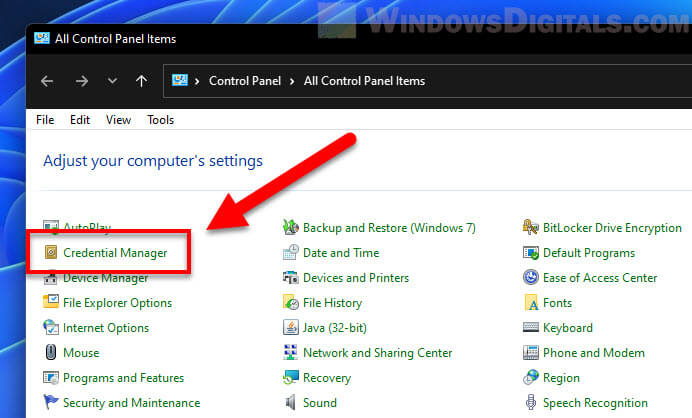
- Under the Windows Credentials section, look for any entries related to Microsoft or Office.
- Click on each entry and select Remove or Delete.
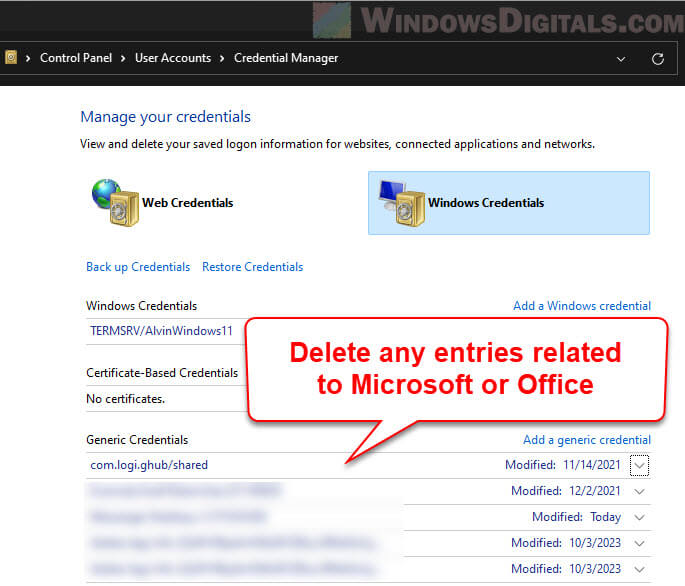
- Confirm any prompts that appear during the removal process.
After completing these steps, it’s crucial to restart your computer once again. This ensures that the changes take effect and prepares the system for a fresh login to Microsoft 365 applications.
Step 5: Locating and deleting specific files
Now we’ll need to delete a specific folder called Microsoft.AAD.BrokerPlugin_cw5n1h2txyewy that may also be one of the culprits causing the Outlook 1001 error. Before moving ahead, it’s crucial to know that you’ll need administrator access to successfully navigate and delete the specific files. Here’s what to do:
- Log off from the current user profile on your computer.
- Now, log in as an administrator. This is essential because there’s a specific folder that can’t be deleted by standard user accounts.
- Once logged in as the administrator, open Windows Explorer.
- Navigate to the following directory:
C:\Users\<username>\AppData\Local\Packages
Note: Replace
<username>with the actual username of the person experiencing the issue. - In this directory, find and delete the folder named:
Microsoft.AAD.BrokerPlugin_cw5n1h2txyewy
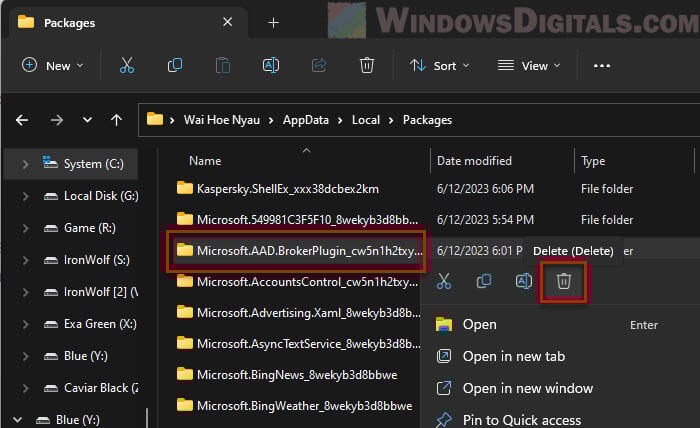
- After deleting the folder, log off from the administrator account and log back in using the affected user’s credentials.
Step 6: Deleting the Outlook profile
This is an important but sensitive step, so ensure you proceed with caution:
- Warning: Before proceeding, ensure you do not have any locally stored accounts in Outlook. Deleting the Outlook profile will remove all data associated with it. Make sure to back up any important data before proceeding.
- Navigate to the Control Panel.
- Locate and click on the Mail (Microsoft Outlook) option.
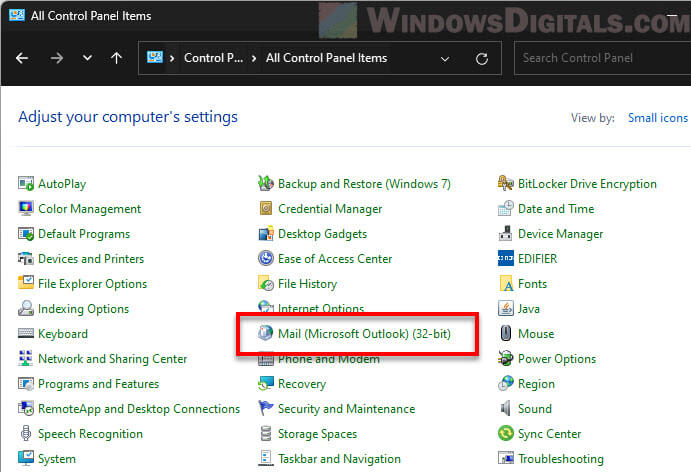
- A window titled “Mail Setup – Outlook” will appear. Here, click on the Show Profiles… option.
- In the subsequent window, you will see a list of all the profiles set up on your computer. Highlight the profile named Outlook.
- Once highlighted, click on the Remove button to delete this profile. Follow any prompts to confirm the deletion.
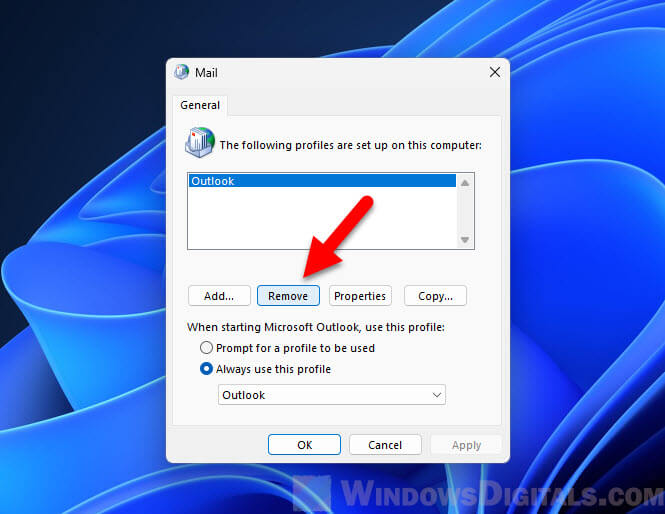
Step 7: Re-login using word
After completing the previous steps:
- Open Microsoft Word on your computer.
- Use it to log into your account by entering your email address and password.
- Complete your 2FA (Two-Factor Authentication) prompt. After this, you should successfully log in without any hindrance.
Step 8: Setting up Outlook profile again
With the previous steps completed:
- Open Microsoft Outlook.
- Follow the prompts to set up your Outlook email profile once more.
- Once completed, your Outlook should operate without any issues.
Related resource: How to Get Outlook to Open Links in Chrome on Windows 11/10
Alternate solution: Fixing the Outlook 1001 login error through Registry
Based on the shared responses from various users on Reddit and Microsoft forums, an alternative solution that has proven successful for some involves modifying the Windows registry. Before proceeding with this method, it’s essential to note that editing the Windows registry incorrectly can lead to system instability. Always ensure you create a system restore point or backup your registry before making any changes.
- Open the Registry Editor:
- Press Win + R keys on your keyboard.
- Type “regedit” and press Enter.
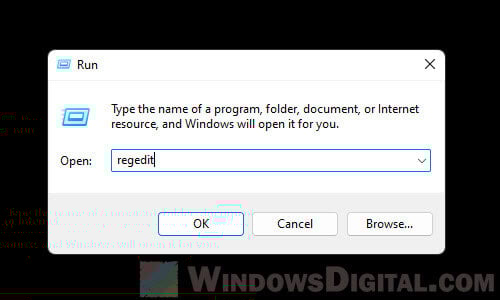
- Locate and delete a specific registry key:
- In the Registry Editor, navigate to the following path:
HKEY_CURRENT_USER\Software\Microsoft\Office\16.0\Common\Identity\Identities
- Right-click on the
Identitieskey and select Delete.
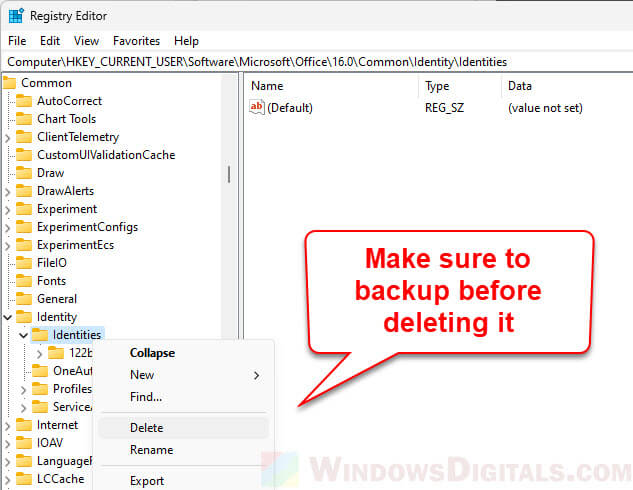
- In the Registry Editor, navigate to the following path:
- Restart your computer:
- After deleting the registry key, close the Registry Editor.
- Restart your computer to ensure changes take effect.
- Check for login issues:
- After the system restart, try logging into the affected application or service to check if the issue persists.
It’s also important to note that in certain environments, like terminal server setups, users have had success by cleaning up specific folders and the above-mentioned registry keys. However, if none of the solutions work, it might be beneficial to contact Microsoft Support or consider resetting the user profile. As always, exercise caution and ensure backups are in place before making significant system changes.
Related Articles
Problem creating new folder under Documents folder / Sync
Error message is displayed when adding new file or folder to Documents folder. RESOLUTION 1. Open up Control Panel. Navigate to Sync Center. 2. Click on "Manage Offline Files”. 3. Under the Disk Usage tab, click "Change Limits”. 4. Move the ...